Live demo
Your own sandbox
This editor and the file manager behind it are yours alone. Change anything, save it, come back later: it is still there. Every night at 03:00 (Europe/Amsterdam time) everything goes back to the example.
Content
Shows the content as the server last received it. Press Save to update it.
Welcome to your sandbox
This is example content, and it is all yours. Change it, save it, and it stays until the nightly reset. Nobody else sees what you do here.
Resize and align images
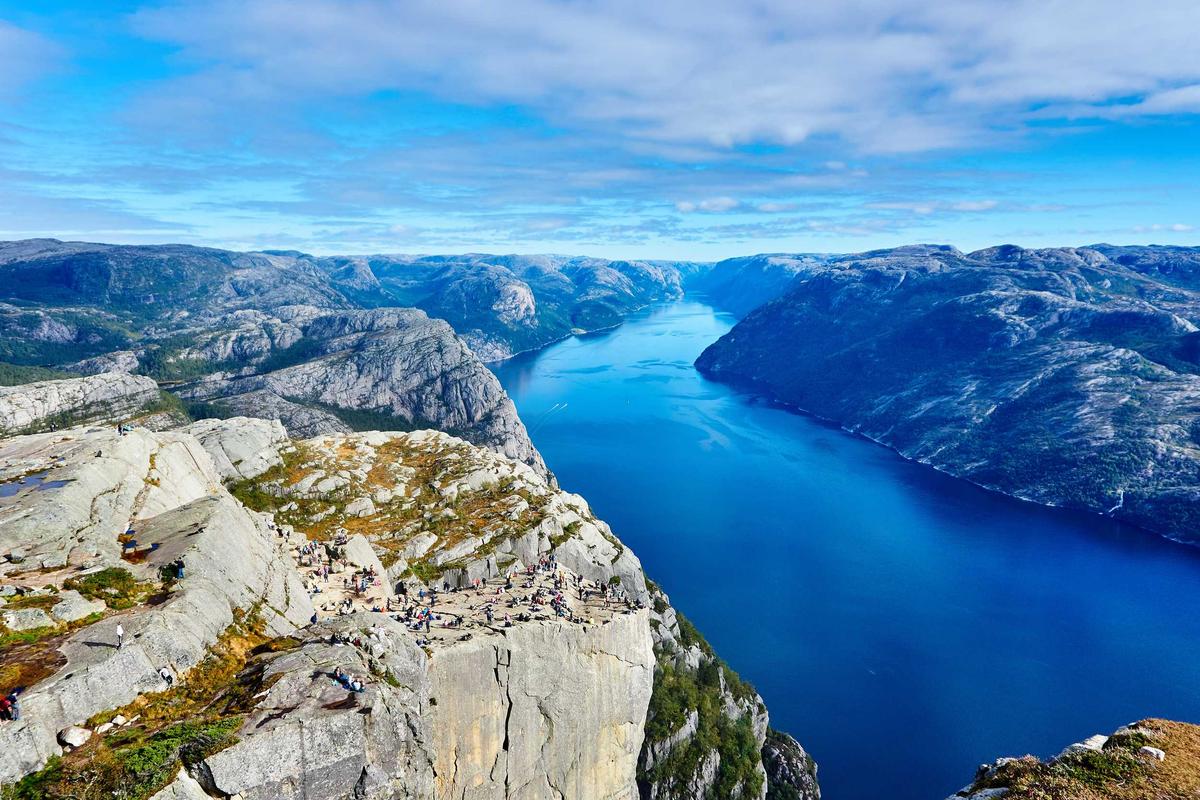
Click the photo above: a menu opens with 25%, 50%, 75% and 100%, a field for your own width, and buttons to align the image left, center or right. Double-click it to edit the alt text, the title, extra classes and styles.

Pick images from the file manager
The image button in the toolbar opens Laravel Filemanager in a popup, with a folder of your own. It holds a few demo photos; upload your own, crop or resize them, and pick one or more to insert them here.
Link to a file
The paperclip button opens the file manager for documents. Choose a file, write the link text, and a link like this one appears: download the feature sheet (PDF). Click a link to edit it.
Drag, drop and paste
Drag an image from your desktop onto the editor, or paste a screenshot. On this site it is uploaded to your folder in the file manager; out of the box the package embeds it as base64.
Everything you see is plain HTML with a few classes and inline styles. Open the HTML tab below the editor to see exactly what gets saved.
In your own Livewire form it takes one line: <x-flux-filemanager-editor wire:model="content" />
Shows the content as the server last received it. Press Save to update it.
<h2>Welcome to your sandbox</h2>
<p>This is example content, and it is all yours. Change it, save it, and it stays until the nightly reset. Nobody else sees what you do here.</p>
<p><img src="/demo-assets/images/fjord-viewpoint.jpg" alt="Hikers on a cliff high above a deep blue fjord" width="100%" data-align="center" class="tiptap-image align-center" style="width: 100%; margin-left: auto; margin-right: auto; display: block;"></p>
<h3>Resize and align images</h3>
<p>Click the photo above: a menu opens with 25%, 50%, 75% and 100%, a field for your own width, and buttons to align the image left, center or right. Double-click it to edit the alt text, the title, extra classes and styles.</p>
<p><img src="/demo-assets/images/desk-with-sketchbook.jpg" alt="A laptop, a sketchbook and a camera on a wooden desk" width="50%" data-align="right" class="tiptap-image align-right" style="width: 50%; margin-left: auto; margin-right: 0;"></p>
<h3>Pick images from the file manager</h3>
<p>The image button in the toolbar opens Laravel Filemanager in a popup, with a folder of your own. It holds a few demo photos; upload your own, crop or resize them, and pick one or more to insert them here.</p>
<h3>Link to a file</h3>
<p>The paperclip button opens the file manager for documents. Choose a file, write the link text, and a link like this one appears: <a target="_blank" rel="noopener noreferrer nofollow" href="/demo-assets/files/feature-sheet.pdf">download the feature sheet (PDF)</a>. Click a link to edit it.</p>
<h3>Drag, drop and paste</h3>
<p>Drag an image from your desktop onto the editor, or paste a screenshot. On this site it is uploaded to your folder in the file manager; out of the box the package embeds it as base64.</p>
<blockquote><p>Everything you see is plain HTML with a few classes and inline styles. Open the HTML tab below the editor to see exactly what gets saved.</p></blockquote>
<p>In your own Livewire form it takes one line: <code><x-flux-filemanager-editor wire:model="content" /></code></p>